
Get Up and Running with Learning Wake
Whether you just signed up for a free trial or your school admin set up your account, this guide walks you through everything you need to know to start tracking student projects today.
Log In to Your Teacher Dashboard
Go to learningwake.net/login-again and sign in with your username and password. First time logging in? Check your email for a welcome message with a Set Your Password button.
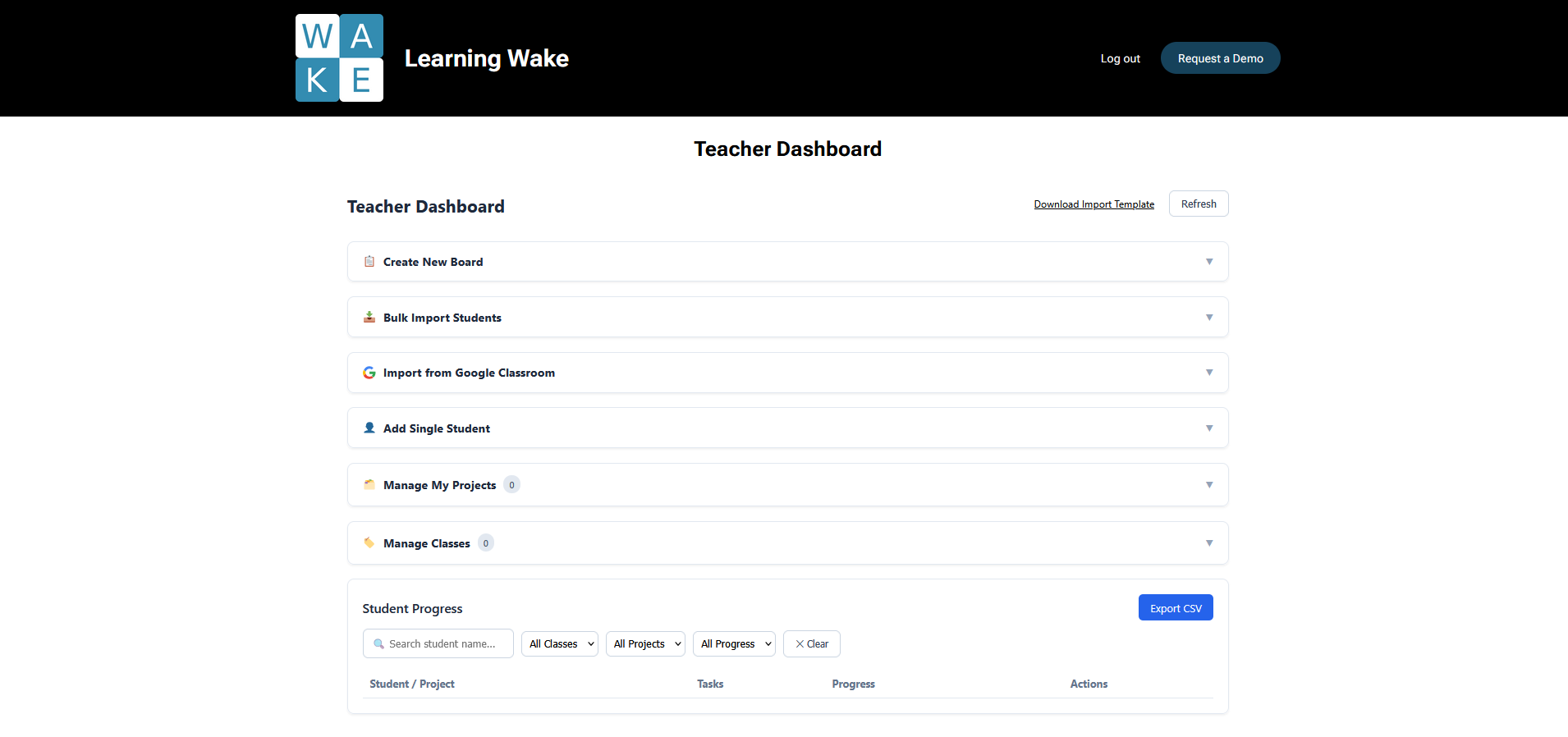
Once you’re in, you’ll land on your Teacher Dashboard — your home base for everything on Learning Wake.
Create Your First Project Board
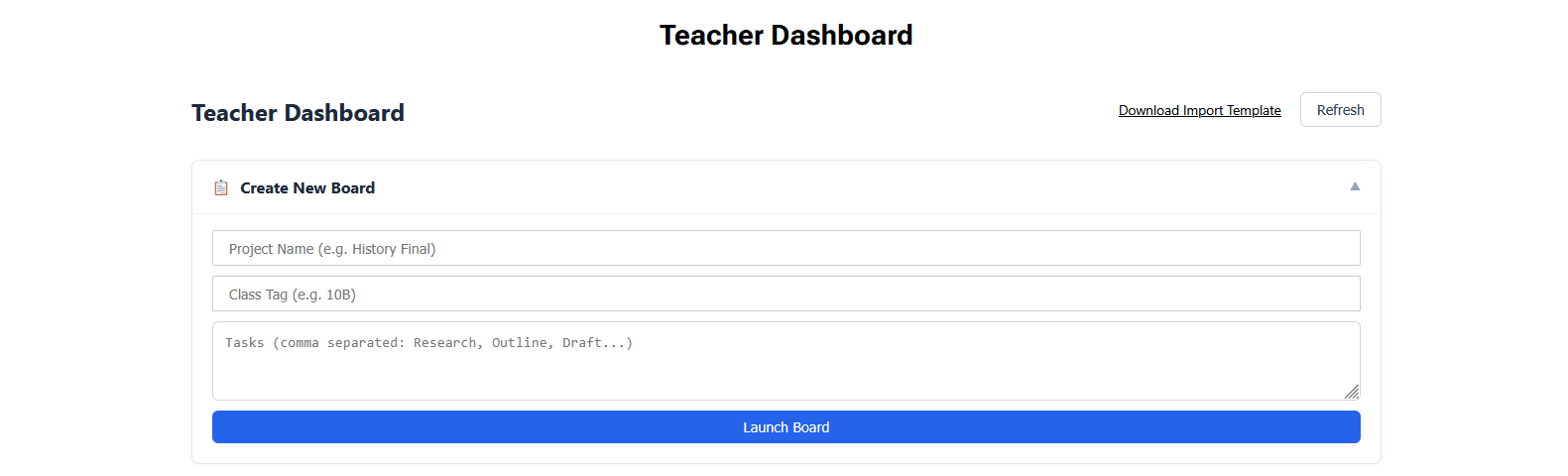
On your Teacher Dashboard, open the Create New Board section. Fill in three things:
- Project Name — what the project is called (e.g. “History Final”, “Science Lab Report”)
- Class Tag — the class this board belongs to (e.g. “Period 3”, “10B”)
- Tasks — the steps students need to complete, separated by commas (e.g. “Research, Outline, Draft, Peer Review, Final Submission”)
Click Launch Board and your board is ready to go.
Add Your Students
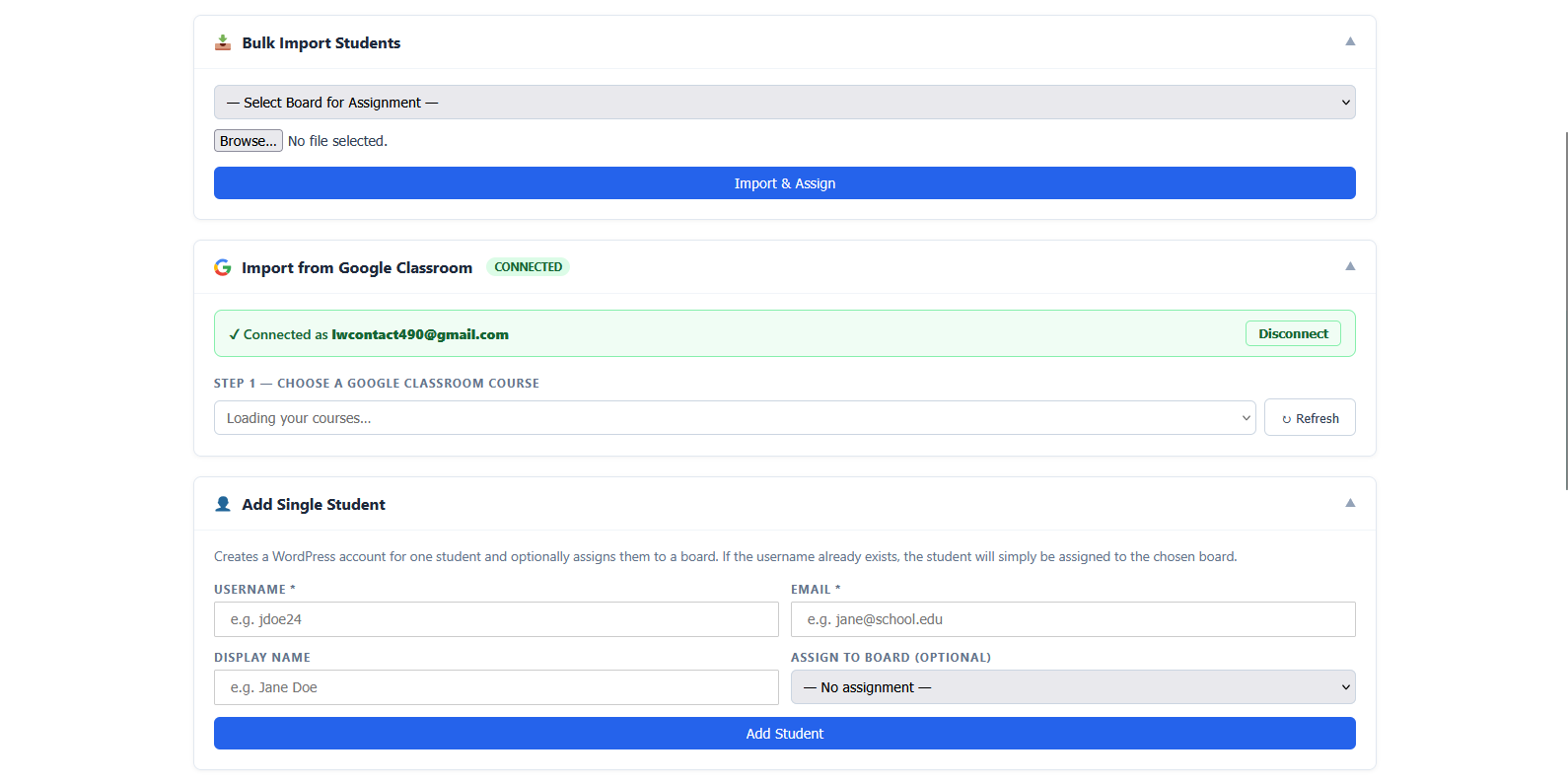
You have three ways to add students — choose whichever fits your situation:
Sign in with Google, select your course, and Learning Wake pulls your roster automatically.
Download the template, fill in your student list, and upload. All accounts are created at once.
Add one student at a time by username and email. Great for latecomers.
Every new student receives a welcome email with their username and a Set Your Password button automatically.
Students Set Their Password and Log In
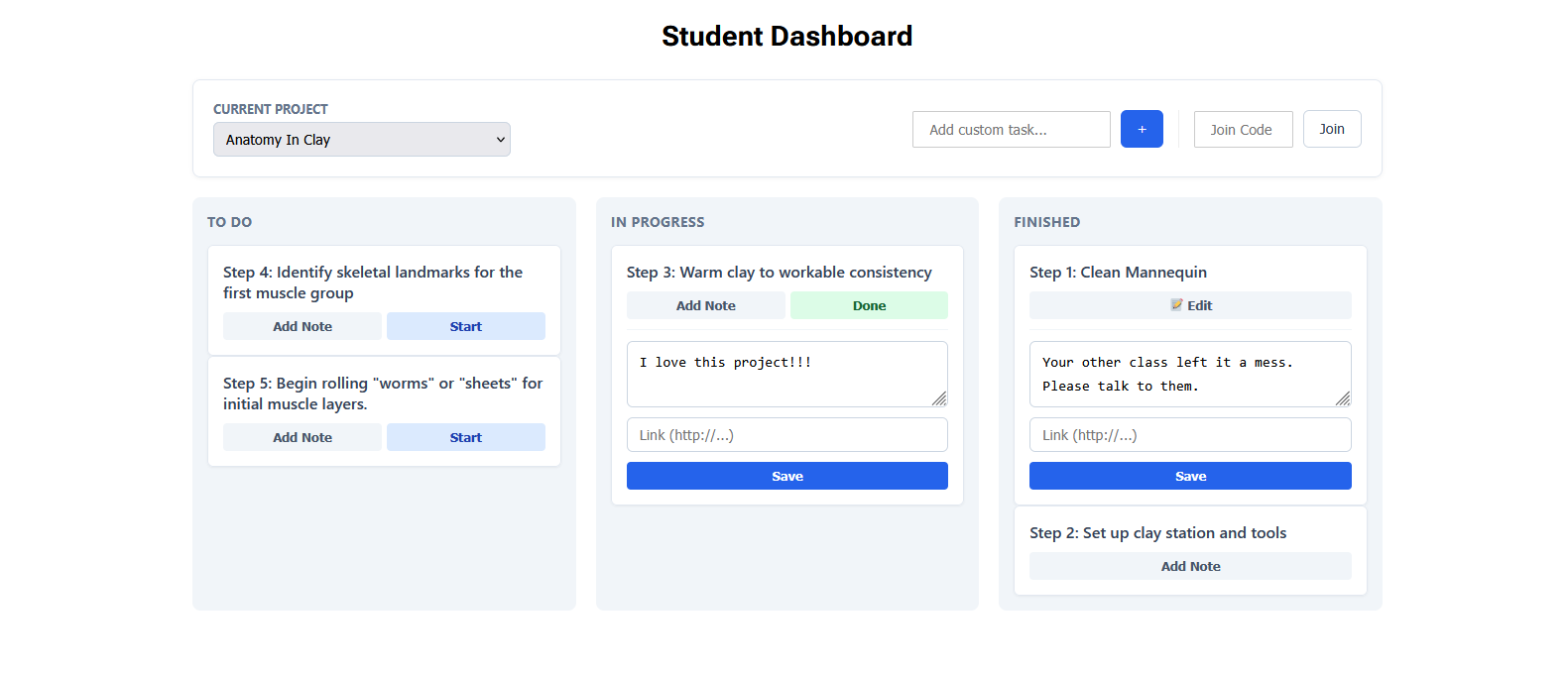
Every new student receives a welcome email from Learning Wake. Once they click Set Your Password and choose a password, they can log in at learningwake.net/login-again and will land directly on their Student Dashboard.
Students only see their own boards — they cannot see other students’ work.
Track Student Progress in Real Time
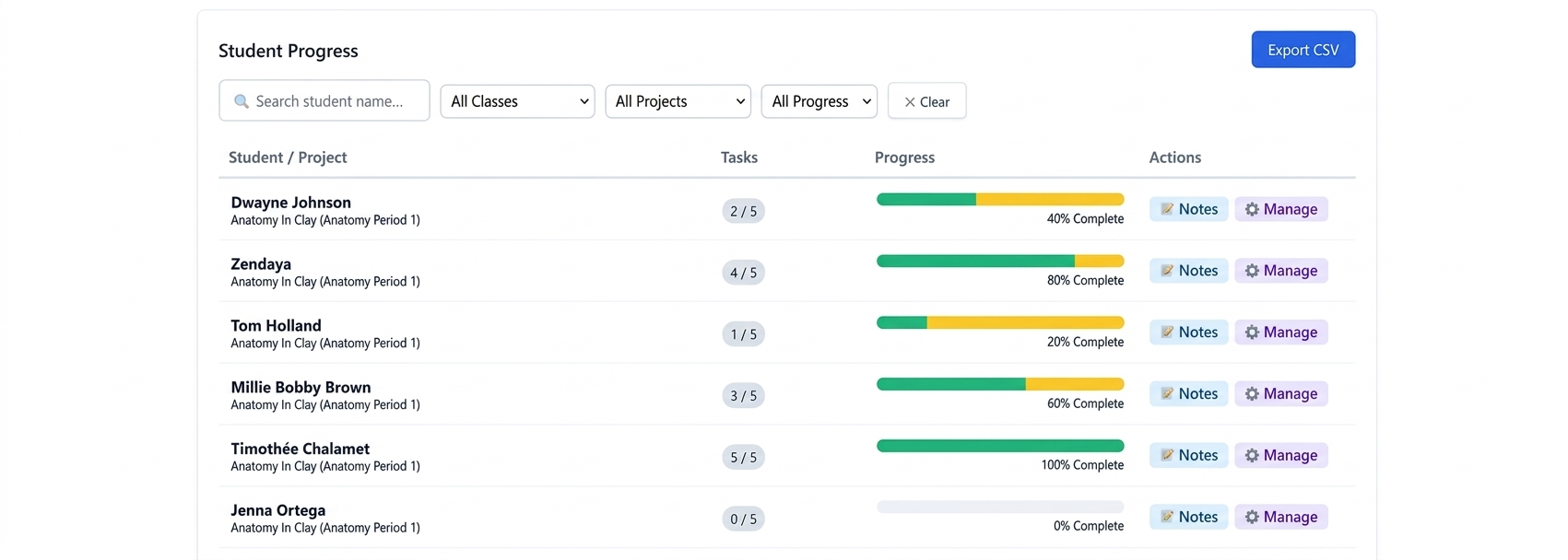
As students mark tasks as In Progress or Finished, your Teacher Dashboard updates automatically. Use the Student Progress table to:
- See every student’s current status at a glance
- Filter by class tag or project board
- Search by student name
- Open the Notes panel to read task notes a student has written
- Use Manage Student to assign projects, override statuses, or leave feedback
Common Questions
No. Students log in with a username and password set through Learning Wake. Google accounts are only needed for teachers who want to use the Google Classroom import.
Learning Wake recognizes existing accounts and skips them — no duplicate accounts are created and no extra emails are sent.
Yes. You can assign a student to multiple boards from the Manage Student panel on your Teacher Dashboard.
Yes. Learning Wake is FERPA, COPPA, and California SOPIPA compliant. Student data is never sold or used for advertising. See our Privacy Policy for full details.
Contact us at contact@learningwake.net and we’ll send one over.
Go to learningwake.net/login-again and click Forgot Password? Enter your username or email and we’ll send a reset link right away.
Ready to Dive In?
Your Teacher Dashboard is waiting. If you run into anything or have questions, we’re easy to reach.